
You can set up language, stretch mode, date format, and other settings on the System Settings page. The specific settings differ across different platforms.
Applies to: All Reolink devices.
Launch Reolink Client and go to Client Settings > System Settings page. The System Settings page contains three tabs: General Settings, Live View & Playback, and Alarm Settings. Change the settings as you need:
General Settings tabs
- Run at Startup: Enable/Disable it to allow Reolink Client to run when you start your PC.
- Automatic Client Update: Enable/Disable it to make the client update automatically if we have released the new client version.
- Add Device Automatically: Enable/Disable it to add devices (excluding battery-powered cameras) that are on the same LAN automatically (use the default account: admin without the password) when you use Reolink Client.
- Lockscreen Password: Set a password to unlock the Reolink Client. No lockscreen password is set by default.
- Date Format: This is for the calendar date format
in Playback.
- Language: Allows you to select the display language of the Client from the available language options, including Deutsch/English/Español/français/Italiano/português/Pусский/Suomalai/中文(简体)/日本語, etc.
- System Status: View the connection status of your devices. If your camera cannot connect, click the camera to attempt to reconnect it, then take a screenshot of the system status and send it to our support team for further assistance.
Live View & Playback tabs
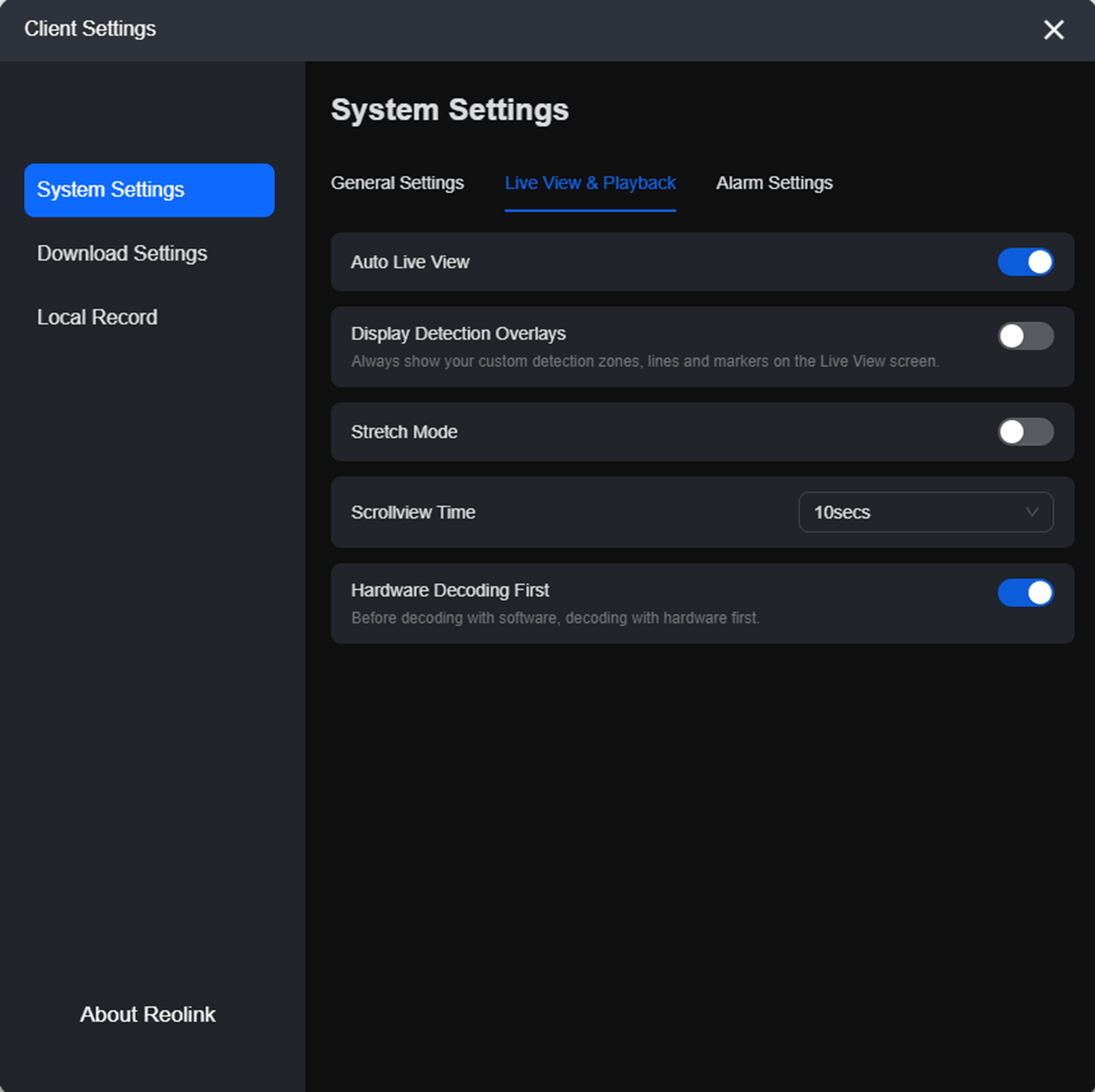
- Auto Live View: Enable or disable whether the camera's live view is automatically displayed when the Reolink Client opens.
- Display Detection Overlays: Enable or disable whether the camera displays configured detection zones, detection lines, and markers on the Live View screen. This allows you to easily check the detection settings while viewing live video.
- Stretch Mode: The live view image will be stretched to the ratio of 16:9 if you enable this option (Applies to the camera with resolutions of 4:3).
- Scrollview Time: The time for staying in this camera's live view when enabled
to automatically monitor images of different cameras on Reolink Client .
- Hardware Decoding first: Enable hardware decoding if the freezing issue occurs when live viewing in clear mode, and disable it if the Reolink Client turns to a black screen.
Alarm Settings tabs
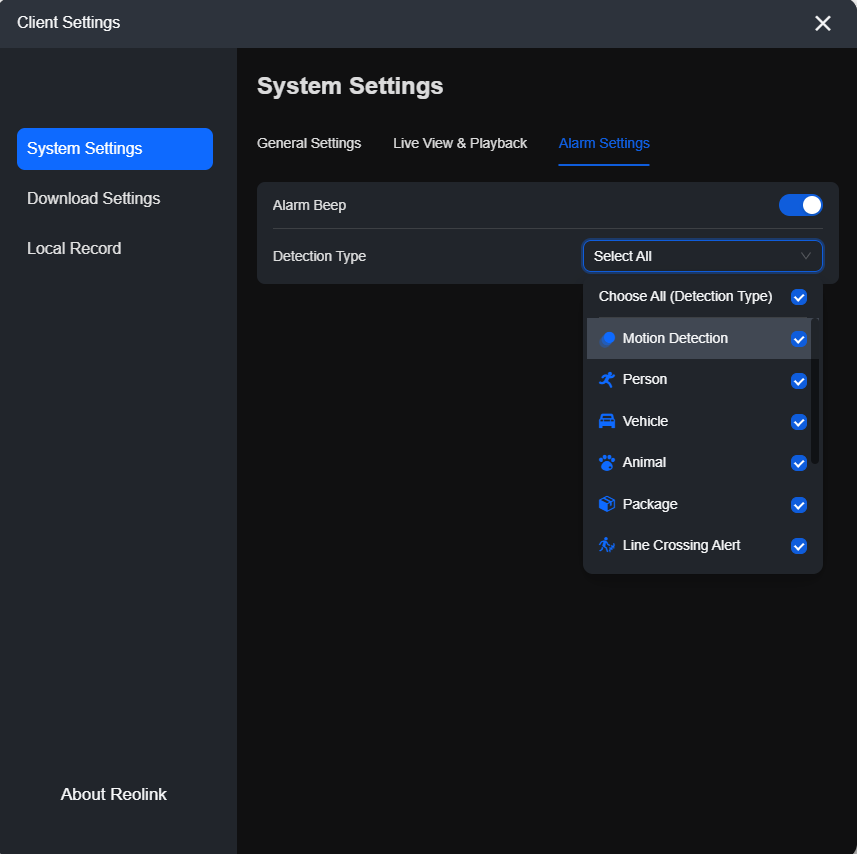
- Alarm Beep: Enable or disable whether your PC plays an alarm beep when the logged-in cameras detect motion. Once enabled, you can choose the detection type according to your needs.
If you have any questions, click “Submit a request” below to contact the Reolink Support Team.